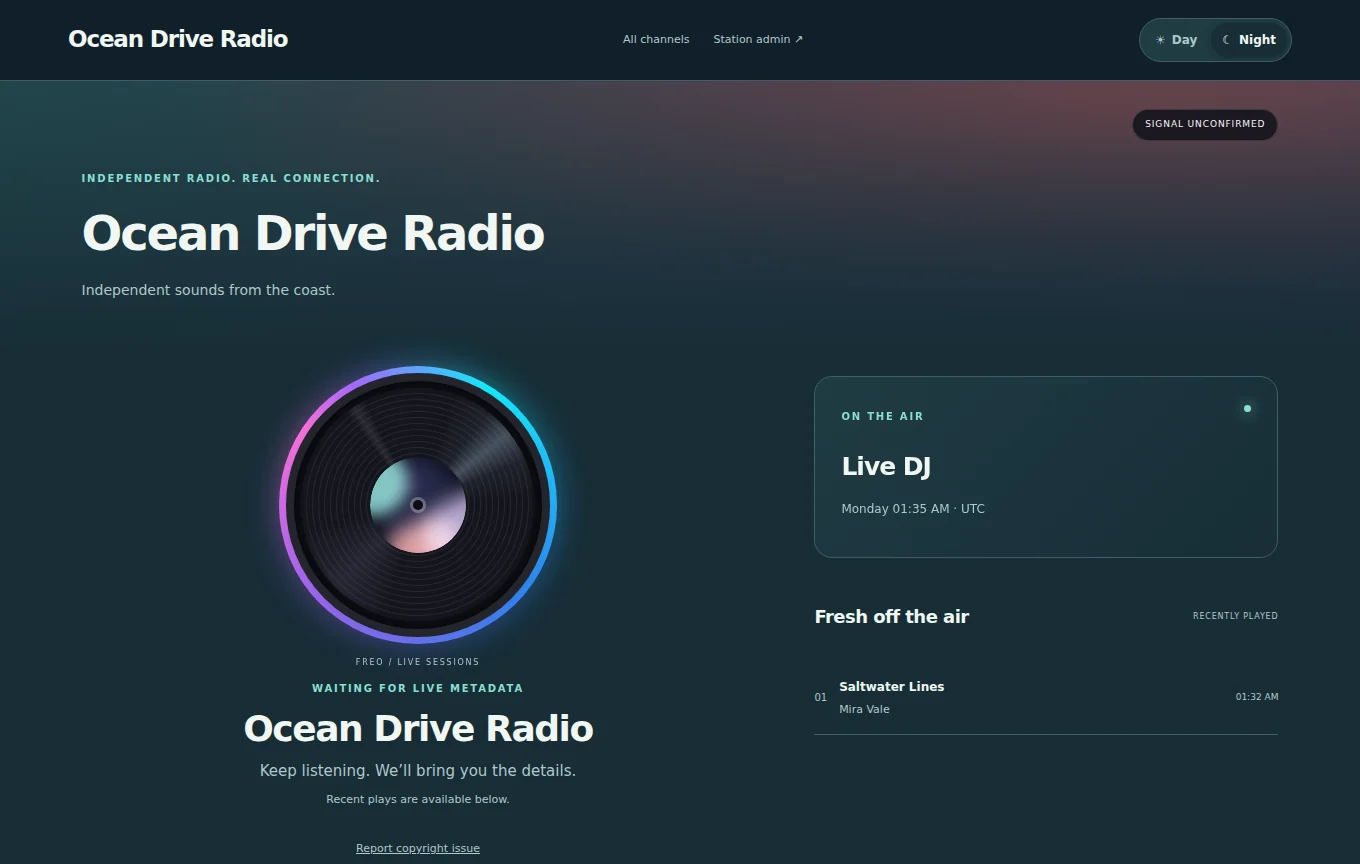
Inside the studio.
Follow Ocean Drive Radio, an example station, from its first playlist to the player your listeners open.
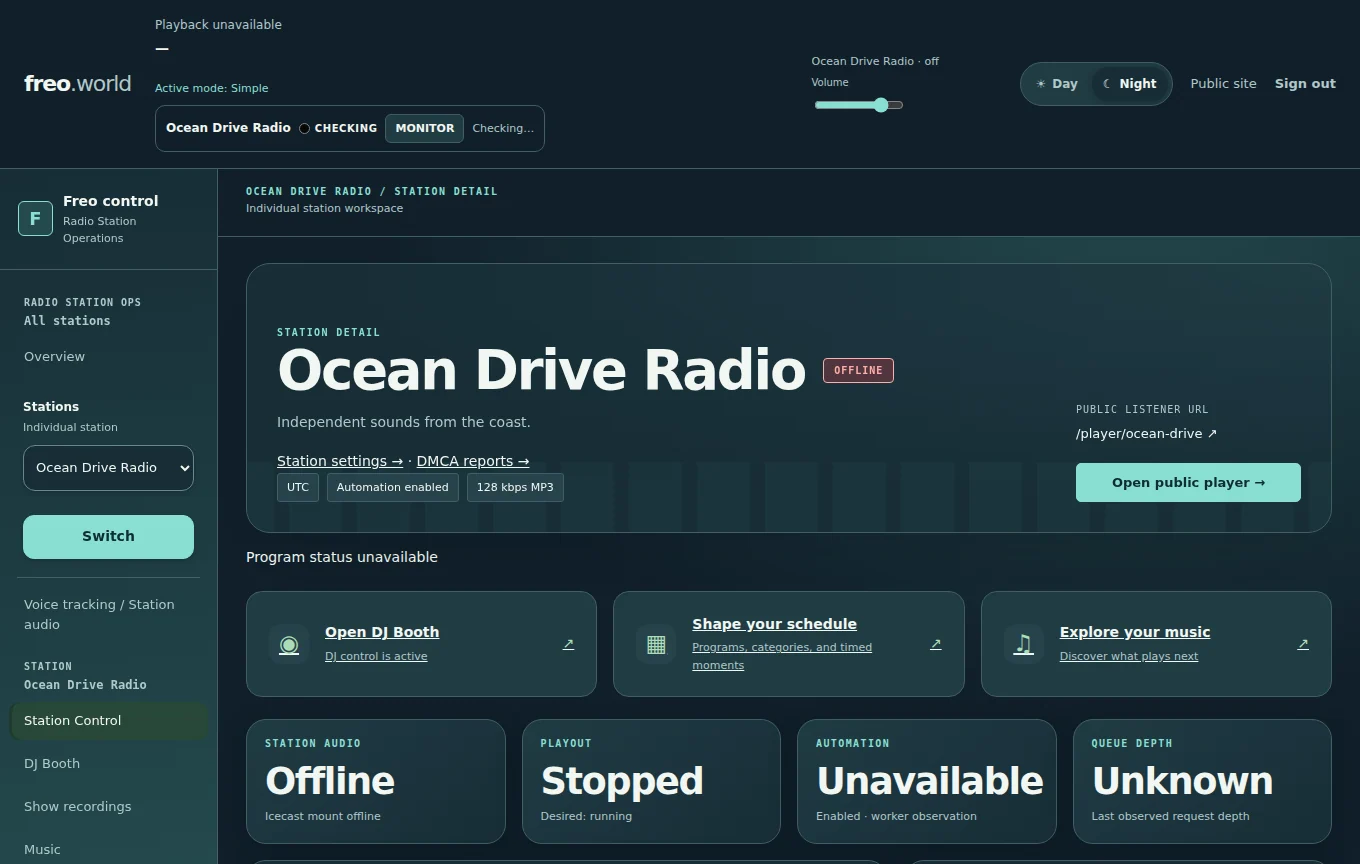
Dashboard
Meet your station.
Start at the station dashboard. Check the broadcast state, open the player, or jump straight to the DJ booth. Ocean Drive Radio is shown here before going on air.
Import music
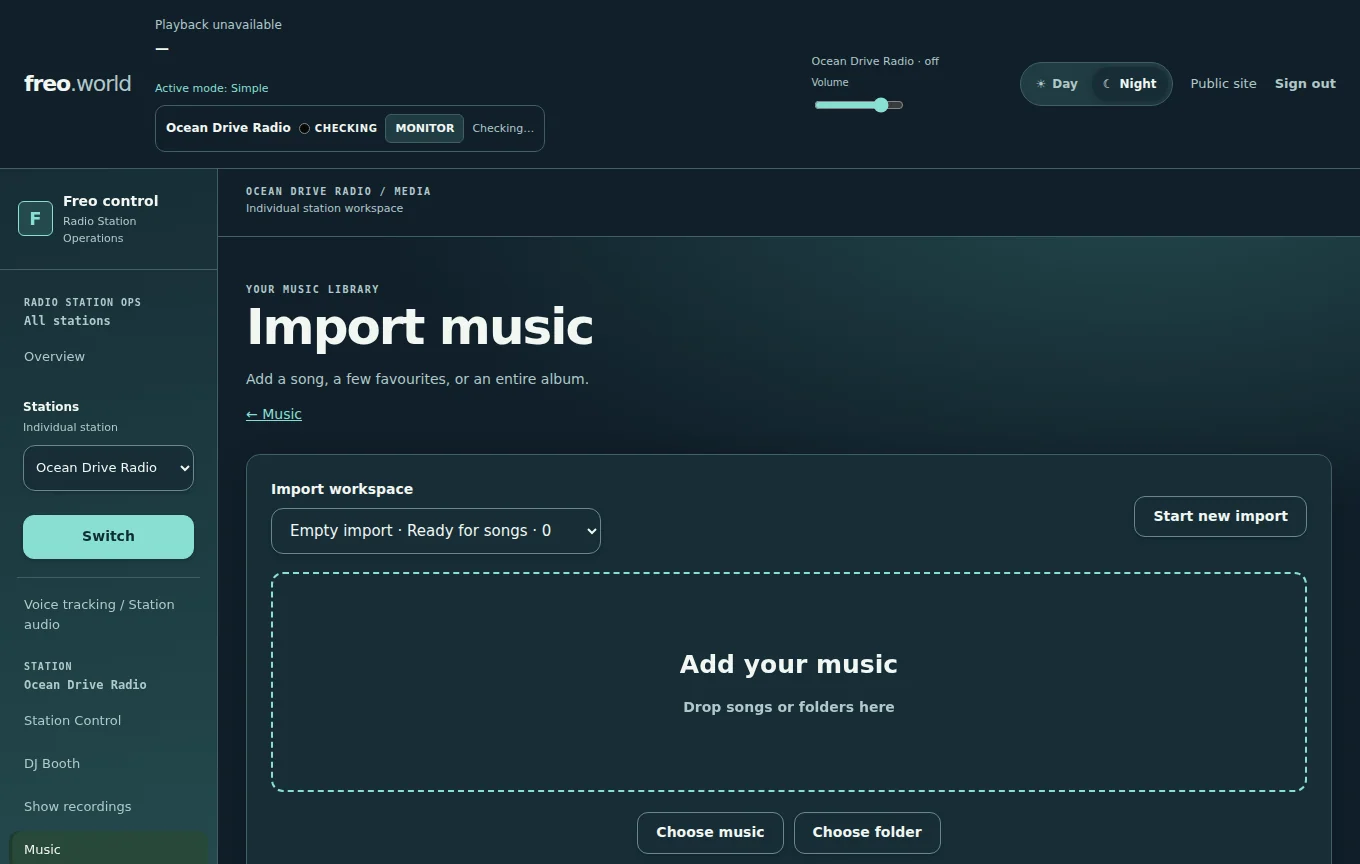
Bring your music in.
Drop songs or folders into the importer. Review the files and their details before adding them to the music library.
Playlists
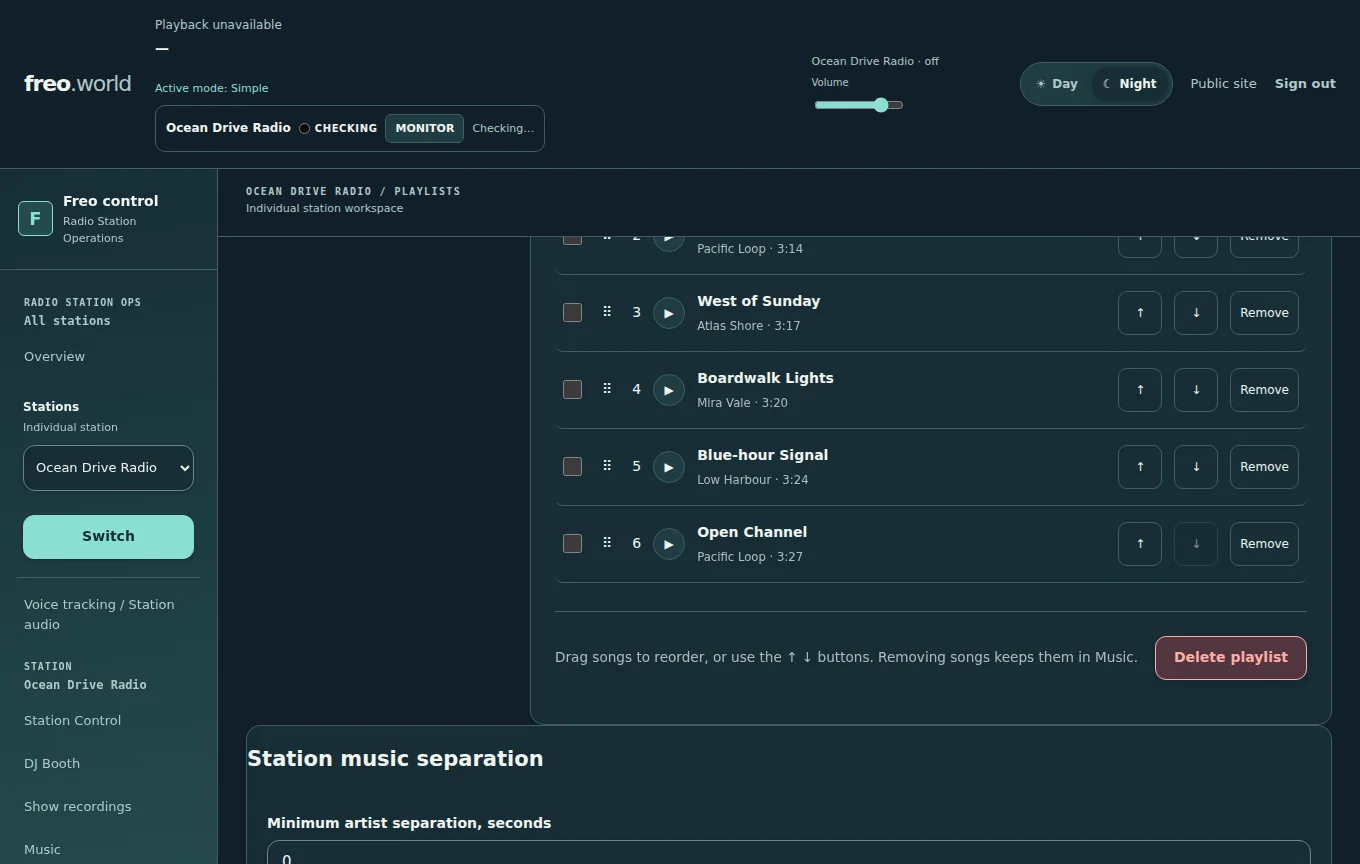
Find the order that sounds right.
The evening playlist is called After the Tide. Drag songs into order, or use the arrow buttons to fine-tune what plays next.
Scheduling
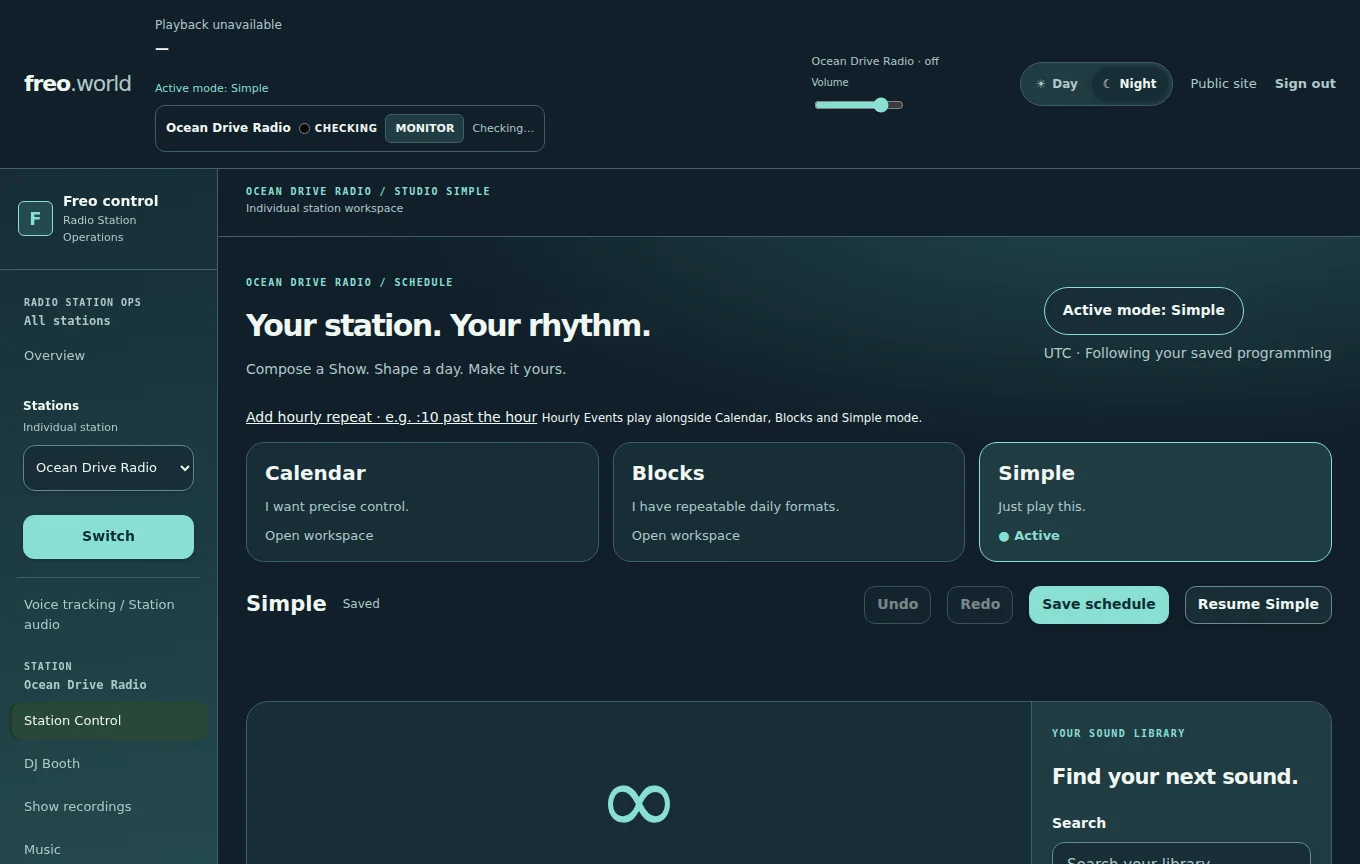
Give the station a rhythm.
Use Simple to repeat a playlist. For a changing lineup, switch to Calendar and place shows into time slots.
DJ booth
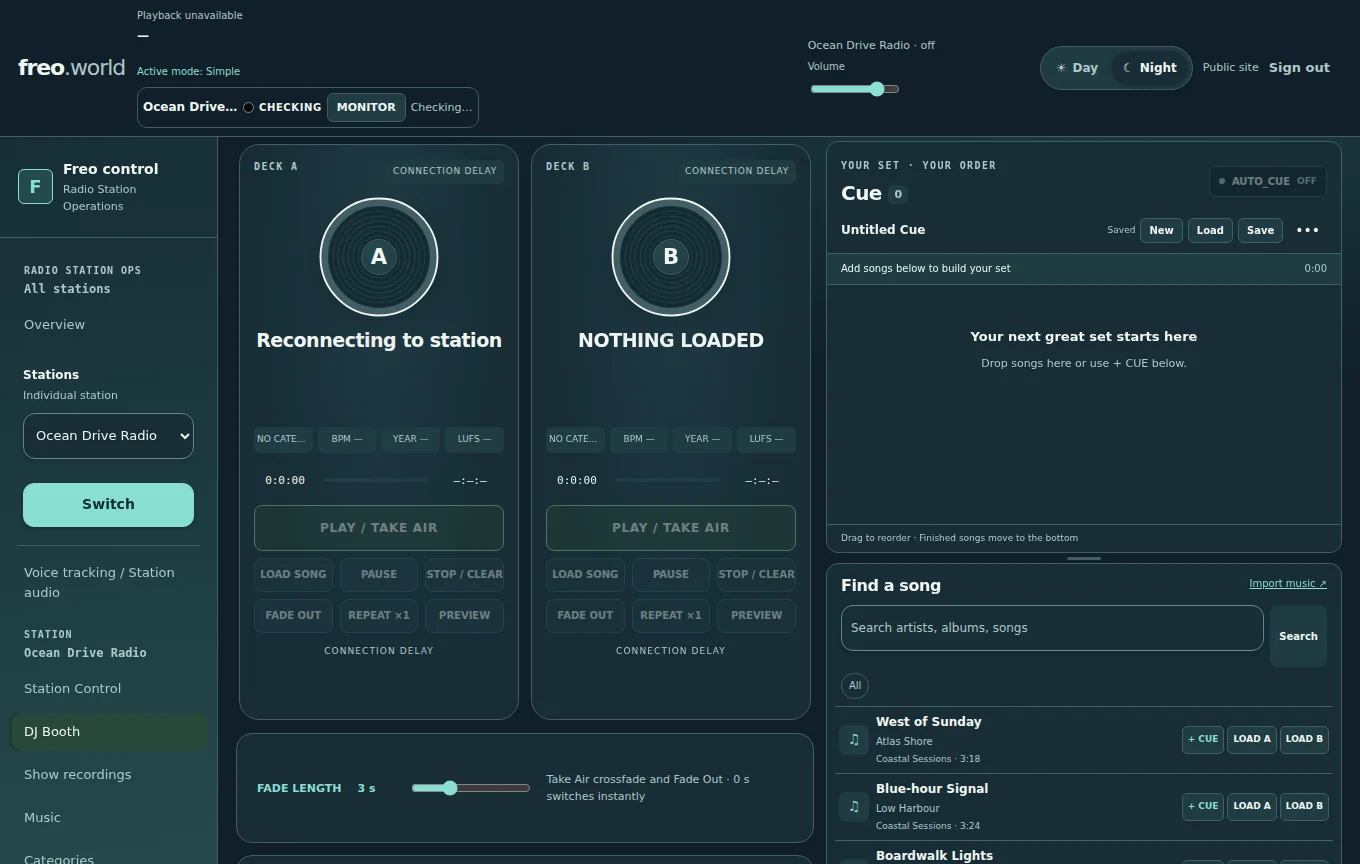
Take the decks.
Open the browser DJ booth to cue tracks, work the two decks, and control a live set. Switch back to automation when your set finishes.
Listener player
Share the listening link.
Listeners open your public player to hear the station and see recently played tracks. They can listen without a Studio account.